Station mode is for a computer that stays at a station while operators take turns on it. It can be club equipment or a member's laptop. You bind the computer's browser to its station once. After that, an operator can sit down, type their callsign, and click Start Logging. Nobody needs an email or password. When they're done, they end the session and the computer is ready for the next operator.
The GOTA station works the same way, except the coach signs in and enters each GOTA operator.
What You Need
- You need the Manage Stations permission. Station Captains, Event Managers, and System Administrators have it by default.
- The station exists in the current event. If not, add it under Event Management > Stations first (see First Event Setup).
- You're sitting at the station's laptop. Station mode binds the browser you click the button in, so don't do this from your phone.
- The computer can reach Field Day Commander over your field network. If it can't yet, see Set Up a LAN for Field Operations.
Step 1: Bind the Browser to a Station
1 On the station computer, sign in to Field Day Commander with your own account and open Event Management > Stations.
2 Find the station's card. The Station-Mode Browsers block near the bottom lists browsers already bound to it, or says "None enrolled."
3 Click Use This Browser for Station Mode. The browser will ask you to confirm and warn that you'll be signed out.
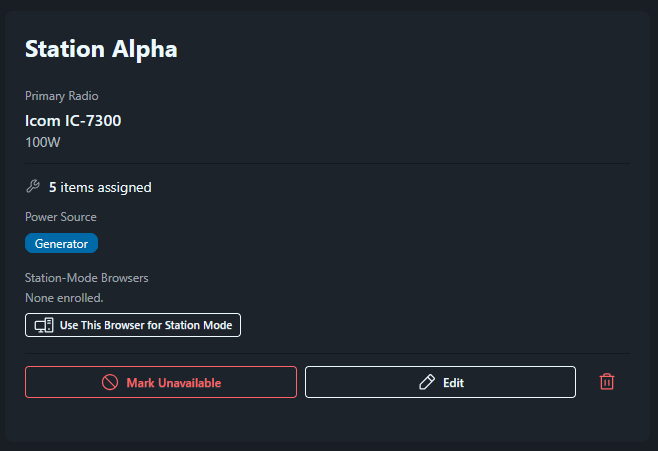
4 Click OK. Being signed out is expected. You should see the station-mode screen, with "Station Mode" and the station's name at the top and a Your callsign box below.
Field Day Commander remembers the binding with a cookie (a small file the browser keeps for the site) that lasts a year, so it survives reboots and power cuts. If a station runs two laptops, bind both. Each bound browser shows on the station's card with when it was enrolled and last used.
A private or incognito window deletes the cookie when it closes, and so does clearing the browser's cookies. Either one turns the laptop back into a normal browser. If that happens, remove the old entry on the Stations page and bind the browser again.
While nobody is signed in, every page except the regular sign-in page sends you back to the station-mode screen. A station captain can still sign in there.
If the station computer only runs Field Day Commander, put the browser in full screen. Press F11 on Windows and Linux, or Control+Command+F on a Mac. That hides the tabs and address bar, gives the log more room, and keeps operators on the logging screen. Press the same keys to leave full screen. If operators also use N1MM Logger+ or WSJT-X on that computer, leave the browser in a normal window so they can switch between apps.
Step 2: What Operators Do at the Station
1 Type a callsign in Your callsign and click Start Logging. Letters, numbers, and "/" are allowed, up to 12 characters.
2 If Field Day Commander doesn't know the callsign, it will ask for a First name and Last name. Fill them in and click Start Logging again.
3 Session setup opens for this station. Choose the band, mode, and power, then click Start Session. From here the logger works as usual.
4 When done, click the red Sign Out button in the top-right corner (it shows the callsign on wider screens). That ends the session, signs the operator out, and brings back the station-mode screen.
Brief your operators on step 4. If someone walks away without clicking Sign Out, the next person will log under their callsign until the idle timeout kicks in.
Station mode doesn't ask for a password. Any callsign works, including one that has an account, and contacts go to whatever callsign was typed. Station mode limits access to logging and event information.
What the terminal can reach
Operators can log on the bound station and sign the visitor guestbook. They can also view event information: the log, dashboards, score and section map; stations and shift schedules; and site safety, club equipment, weather, and photos. Everything else is hidden, including Transcribe Paper Log, Message Traffic, the bulletin page, My Equipment, profiles, and the Administration menu. A direct link to another page shows "This page is not available in station mode."
Apart from logging contacts and signing the guestbook, access to these pages is read-only. Operators can't upload or delete photos, check off safety items, edit the dashboard layout, or log on a different station ("This browser can only log for its assigned station."). The same limits apply when an Event Manager types their callsign at the terminal.
The GOTA station
On a GOTA station, the screen asks for the Control operator callsign instead. The licensed control operator (usually your GOTA coach) starts the session with their callsign and stays at the station. Each GOTA operator is entered in the GOTA Operator section of the logging screen.
Idle Timeout
After 15 minutes with no typing, clicking, or touching, the terminal asks Are you still operating? and counts down 60 seconds. Keep Session Open dismisses it. Sign Out Now, or letting the countdown run out, ends the session and brings back the station-mode screen.
Taking a Browser Out of Station Mode
There are three ways, and each needs the Manage Stations permission.
- From the terminal. On the station-mode screen, click Station captain: exit station mode at the bottom. Enter your Email and Password and click Exit Station Mode. This exits station mode without signing you in. After five wrong tries, the form will make you wait.
- By signing in on the terminal. Use the regular sign-in page, then open your user menu (top right) and choose Station Mode Browser. Click Sign Out to hand the station back to operators, or Exit Station Mode.
- From anywhere, by removing it. On Event Management > Stations, click Remove Browser next to the browser in the station's Station-Mode Browsers list. If someone is using it, their session will end on their next click. Use this when a laptop goes home with its owner on Sunday afternoon.
If your password is refused at the exit link, check that your account has the Manage Stations permission. An Operator account can't exit station mode, even with the right password. The audit log records every enrollment, removal, exit, and station-mode session.
Callsign-Only Accounts and Activate Account
When someone types a callsign Field Day Commander doesn't know, it creates a callsign-only account with the name they entered. External loggers and ADIF imports do the same for unknown operators. A callsign-only account holds contacts but can only sign in at a station-mode terminal.
To find them, go to Administration > Users and set the Status filter to No Sign-In (callsign only). Each one has a No Sign-In badge.
To give a callsign-only account a personal sign-in, such as a new member who first showed up at the GOTA table, open the actions menu (⋮) on that row and choose Activate Account. Enter an Email, check the First Name and Last Name, and copy the Temporary Password before clicking Activate Account. They'll have to change it the first time they sign in. The account gets the Operator role if it has none, and keeps everything they logged. This needs the Manage Users permission.
Marking a Station Unavailable
To keep operators off a broken station, open Event Management > Stations and click Mark Unavailable on its card. Pick a Reason (Equipment Failure, Antenna Problem, Maintenance / Setup, or Other), add a Note (optional) like "Finals blown on the amp, swapping radios," and confirm. Any active session on that station will end.
The card turns red and shows the reason, the note, and who marked it. On the Log Contact page, the station's Select Station button is disabled and shows "Down" with the reason. A terminal bound to the station shows a warning. Operators can still sign in there to view the log, but they can't start a session. When it's fixed, click Mark Ready. Station Captains, Event Managers, and System Administrators can do both.
During your dry run, set up a terminal and have a few people take turns: sign in, log a test contact, end the session, and let one sit idle until the timeout fires. It'll save a lot of "how do I get out of this?" on Saturday afternoon.